Move the Docker daemon off root so a container escape lands on an ordinary user

- 1Lock down Docker networks
- 2Run containers as non-root
- 3Identity in front of every port
- 4Membership, not just an account
- 5An identity for the agent, not a key
- 6A tool server that checks who is asking
- 7Where the agent can go, not just what it can call
- 8Move the daemon off root
- 9Run the model's own code without trusting it
- 🏆A scope per tool, and a refusal clients can act on
Here is the part nobody says out loud when they tell you to add yourself to the docker group
so you can stop typing sudo.
That group is root. Not "close to root", not "root for Docker things". If you can run a container, you can read, change or delete any file on the machine — including the password file, including other people's home directories, including the files the administrator deliberately kept away from you.
No exploit required. It is one command, and it takes about four seconds.
One WEC Instance: 8 vCPU AMD EPYC 7601, 15 GB RAM, Ubuntu 22.04, kernel 5.15. System daemon is
Ubuntu's docker.io 29.1.3; the rootless daemon installed here is 29.8.1 with
rootlesskit 3.1.0. Test image is alpine:3.20. The host was running 20 containers under the
system daemon throughout, and none of them stopped.
Every command output and timing below is from that run.
Proving it on your own machine
Run this as a normal user. There is no sudo anywhere in it.
docker run --rm -v /:/host alpine:3.20 \
  sh -c 'touch /host/root/rootless-demo && echo WROTE as uid $(id -u)'
sudo ls -l /root/rootless-demo

WROTE as uid 0
-rw-r--r-- 1 root root 0 Sep 16 20:58 /root/rootless-demo
A user who cannot so much as list /root just created a file in it, owned by root.
Nothing malfunctioned. That is the design. The daemon runs as root, you asked it to mount the whole filesystem, and it did — because a root process is allowed to. The container's "root" is the host's root. They are the same thing.
Docker documents this plainly, and it is worth reading their wording rather than mine. From Docker daemon attack surface:
only trusted users should be allowed to control your Docker daemon
and, on the same page:
Docker allows you to share a directory between the Docker host and a guest container; and it allows you to do so without limiting the access rights of the container.
That is not a warning about a flaw. It is a description of the feature we just used.
Clean it up before moving on:
sudo rm -f /root/rootless-demo
Why this is worse on a host running agents
An AI agent that executes code it generated is, in security terms, remote code execution that you installed on purpose. That is not a criticism of agents — it is what they are for.
So the question stops being "could an attacker run code here?" — something already does, constantly — and becomes "what can that code reach?"
If it can reach the Docker socket, the answer is everything, via the command above. Your API keys. Your SSH keys. The database volume. All of it, regardless of how carefully the agent's own container was configured.
What Part 2 did and did not fix
Part 2 found two of six Langfuse containers
running as root and fixed them with user: "999:999". That was worth doing and it is still
worth doing.
But it changes who the process is inside the container. The daemon that starts it is still root, and the socket is still a door to the whole machine. Part 2 hardened the passenger. This post goes after the driver.
What rootless mode actually does
The daemon stops running as root and runs as you.
Containers still think they have root — software inside them keeps working normally. But that
"root" is now translated, by the kernel, into an ordinary unprivileged account that owns
nothing important. Escape the container and you are not the administrator. You are ubuntu.
The translation uses a block of user IDs the system set aside for you. Here is the whole idea in one picture — the same container, under each daemon:
The left half is why the first command worked. The right half is what we are about to build, and the arithmetic in it is something you can verify yourself in a minute.
This translation is a Linux kernel feature called a
user namespace, not a Docker
invention — Docker is just asking the kernel for one. The block of IDs it maps into is declared
in /etc/subuid:
grep '^ubuntu:' /etc/subuid /etc/subgid
/etc/subuid:ubuntu:100000:65536
/etc/subgid:ubuntu:100000:65536
65,536 IDs starting at 100000, yours alone. Hold onto that number — the mapping becomes checkable arithmetic in a moment.
Installing it: four walls
The documentation assumes a setup this machine does not have. Here is each wall in the order you hit it.
Wall 1 — the package does not exist
Every guide opens with the same line. On Ubuntu's Docker:
sudo apt-get install -y docker-ce-rootless-extras
dpkg -L docker.io | grep -iE 'rootless|rootlesskit'
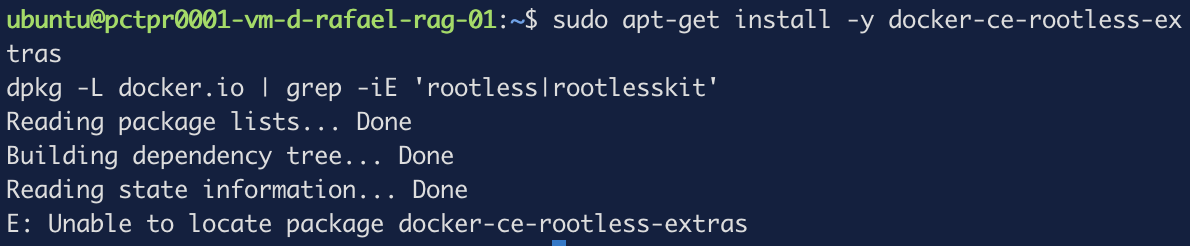
E: Unable to locate package docker-ce-rootless-extras
That package belongs to Docker's own repository. This host runs Ubuntu's docker.io, and the
second command returns nothing at all — the distribution package ships no rootless tooling
whatsoever.
That matters because it forces a choice. You can replace docker.io with Docker CE, which
means swapping out the daemon currently running your containers. Or you can install a second,
user-owned daemon beside the first. With 20 services running, the second option is the only
sane one, and it is what the rest of this post does.
What you do need from apt is the ID-mapping helpers:
sudo apt-get install -y uidmap
On Ubuntu 22.04 this may trigger a "Daemons using outdated libraries" prompt with
containerd.service and your database pre-selected. uidmap does not need any of them
restarted. Deselect them, or cancel the prompt — the install still completes.
Wall 2 — the installer refuses to run
curl -fsSL https://get.docker.com/rootless | sh
# Installing stable version 29.8.1
Aborting because rootful Docker is running and accessible.
Set FORCE_ROOTLESS_INSTALL=1 to ignore.
The guard assumes you are migrating — that a running root daemon means you are about to make a mess. Running both side by side on purpose is never mentioned, and the way to proceed appears only inside the error text.
Note the version it names: 29.8.1, while the system daemon is 29.1.3. You will end up with two different Docker versions on one host. That is expected here, and worth knowing.
curl -fsSL https://get.docker.com/rootless | FORCE_ROOTLESS_INSTALL=1 sh
Wall 3 — it moves your CLI without telling you
Read the last lines of the installer output:
[INFO] Creating CLI context "rootless"
[INFO] Using CLI context "rootless"
Current context is now "rootless"
Now ask Docker what is running:
docker ps
docker context ls
docker -c default ps -q | wc -l
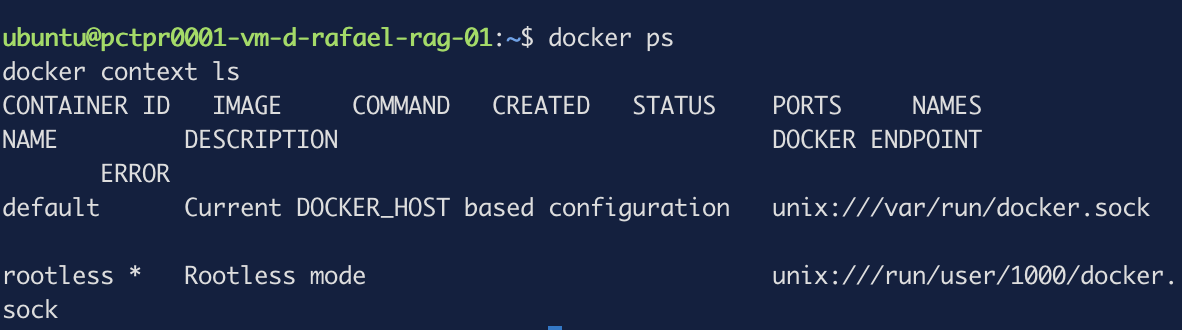
CONTAINER ID   IMAGE     COMMAND   CREATED   STATUS    PORTS     NAMES

NAME         DESCRIPTION                              DOCKER ENDPOINT                     ERROR
default      Current DOCKER_HOST based configuration  unix:///var/run/docker.sock
rootless *   Rootless mode                            unix:///run/user/1000/docker.sock

20
An empty list, while twenty containers run perfectly well. Nothing broke and nothing warned you — the CLI is answering a different question than the one you think you asked, because the installer repointed it on the way out.
Put it back, and opt in per command instead:
docker context use default          # everyday work, unchanged
docker -c rootless ps               # explicit when you want the new one
Start the daemon and confirm what you have:
export XDG_RUNTIME_DIR=/run/user/$(id -u)
systemctl --user start docker.service
docker -c rootless info --format '{{.ServerVersion}} {{.SecurityOptions}}'
29.8.1 [name=seccomp,profile=builtin name=rootless name=cgroupns]
name=rootless is the daemon confirming what it is.
The installer tells you to add ~/bin to your PATH. For day-to-day use you do not have to:
the system docker client talks to the rootless daemon perfectly well through the context, and
every command in this post was run that way. You need the PATH only for the setup and uninstall
scripts — and without it they fail with dockerd-rootless.sh needs to be present under $PATH,
which tells you nothing about what is actually wrong.
Checking that the mapping is real
Ask a container who it is, then look at that same process from outside:
docker -c rootless run --rm alpine:3.20 id
docker -c rootless run -d --name u0 alpine:3.20 sleep 60
ps -o user=,uid=,cmd= -C sleep | grep 'sleep 60'

docker -c rootless run -d --name u1000 --user 1000:1000 alpine:3.20 sleep 120
ps -o uid=,cmd= -C sleep | grep 'sleep 120'
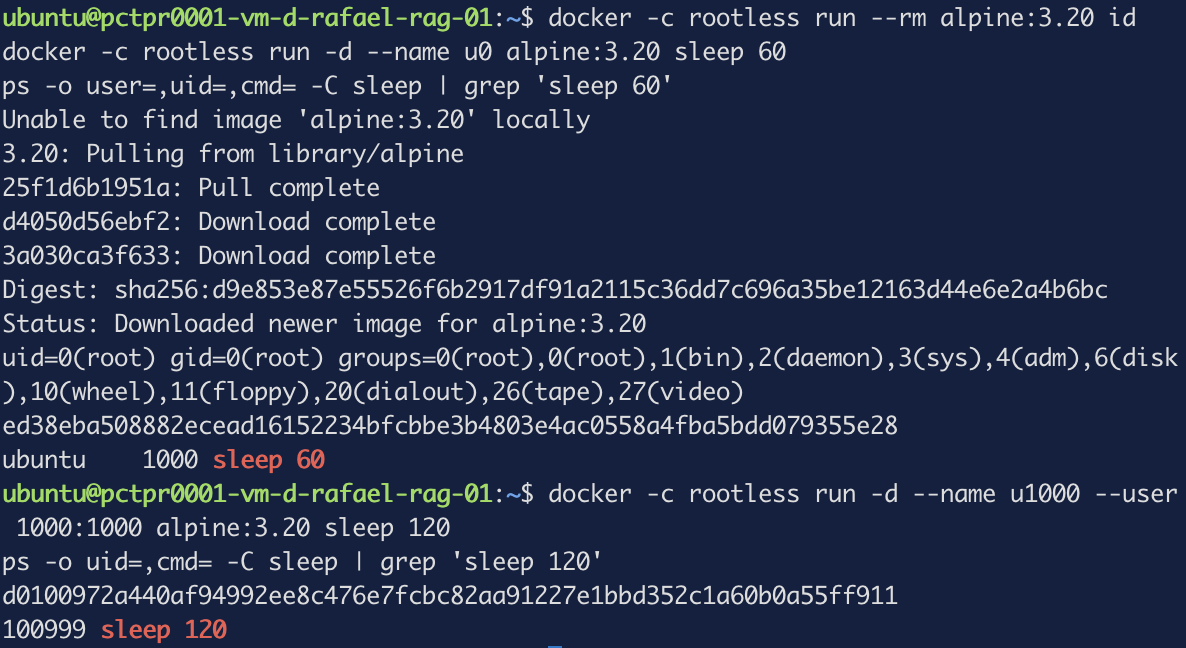
uid=0(root) gid=0(root) groups=0(root),...
ubuntu    1000 sleep 60
100999 sleep 120
Read those three lines together, because they are the entire mechanism:
- The container believes it is root.
- The host says that process belongs to
ubuntu. - A container running as ID 1000 shows up on the host as 100999.
That last number is 100000 + 1000 - 1 — the start of your reserved block, offset by the
container's own ID, because container root already took the first slot by mapping to you.
Which gives you a test rather than a promise. Work it out from your own /etc/subuid line and
see whether the number matches. If you instead see plain 1000, the translation is not
happening and something is wrong with the setup.
Clean up:
docker -c rootless rm -f u0 u1000
The same command, the other daemon
Back to the command this post opened with. Same image, same mount of the entire filesystem, same flags. Only the daemon differs:
docker -c rootless run --rm -v /:/host alpine:3.20 \
  sh -c 'touch /host/root/rootless-demo || echo DENIED'
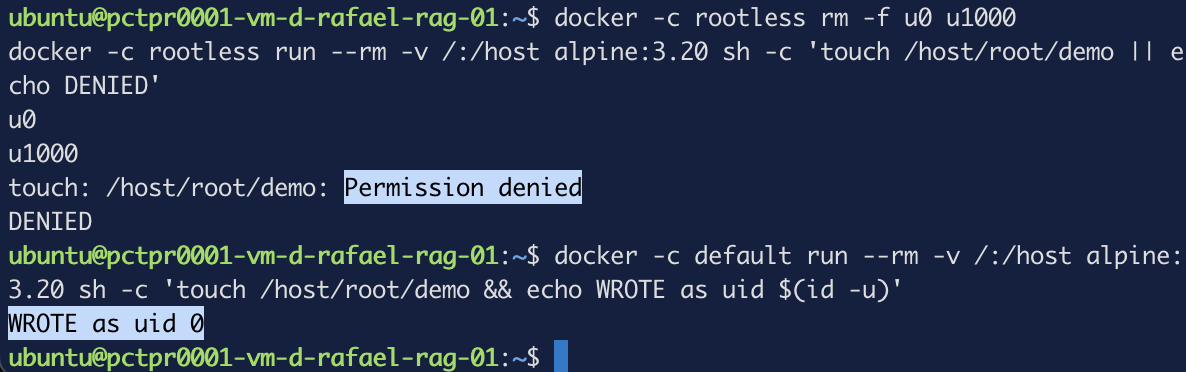
touch: /host/root/rootless-demo: Permission denied
DENIED
The container still believes it is root. The kernel disagrees, because the process behind it
belongs to ubuntu, and ubuntu cannot write to /root.
That is the post, in two outputs.
What it costs you
Four things, all measured here rather than quoted.
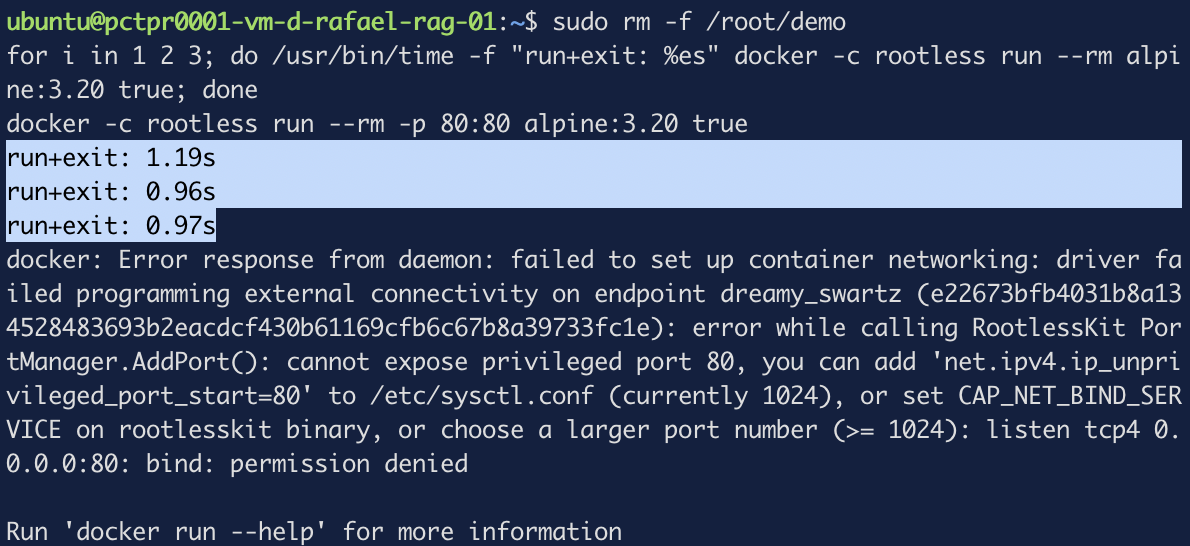
Containers do not start noticeably slower. Three consecutive runs:
for i in 1 2 3; do /usr/bin/time -f "run+exit: %es" \
  docker -c rootless run --rm alpine:3.20 true; done
docker -c rootless run --rm -p 80:80 alpine:3.20 true
run+exit: 1.19s
run+exit: 0.96s
run+exit: 0.97s
Ports below 1024 are refused, and unusually, the error tells you every way out:
cannot expose privileged port 80, you can add
'net.ipv4.ip_unprivileged_port_start=80' to /etc/sysctl.conf (currently 1024),
or set CAP_NET_BIND_SERVICE on rootlesskit binary,
or choose a larger port number (>= 1024)
-p 18080:80 binds without complaint. Behind a reverse proxy this rarely matters.
Disk throughput limits stop working. The daemon says so at startup, and it is easy to miss:
WARNING: No io.max (rbps) support
WARNING: No io.max (wbps) support
So --device-read-bps and --device-write-bps silently do nothing. If you were relying on
those to stop one container starving the others, rootless takes that away.
Capability dropping still works, which matters because these are often treated as alternatives:
docker -c rootless run --rm --cap-drop=ALL alpine:3.20 sh -c 'echo cap-drop ok'
cap-drop ok
They stack. Keep using user: and --cap-drop=ALL — each layer assumes the one before it
failed.
Shared folders behave differently
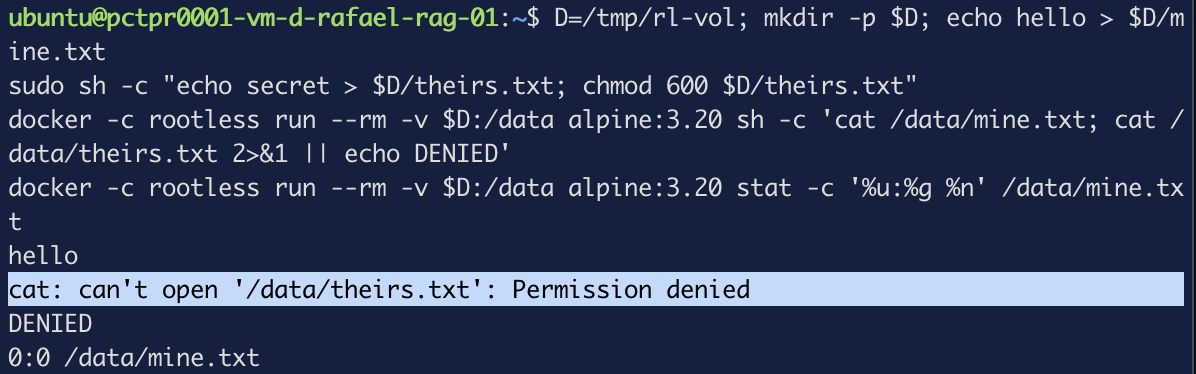
This is the part that catches people moving a real service across. Host permissions apply as you, not as root:
D=/tmp/rl-vol; mkdir -p $D; echo hello > $D/mine.txt
sudo sh -c "echo secret > $D/theirs.txt; chmod 600 $D/theirs.txt"
docker -c rootless run --rm -v $D:/data alpine:3.20 sh -c \
  'cat /data/mine.txt; cat /data/theirs.txt 2>&1 || echo DENIED'
docker -c rootless run --rm -v $D:/data alpine:3.20 stat -c '%u:%g %n' /data/mine.txt
hello
cat: can't open '/data/theirs.txt': Permission denied
DENIED
0:0 /data/mine.txt
Your own file reads fine. The root-owned one is refused — even though the container thinks it
is root, because the kernel knows better. And your file appears inside the container as owned
by 0:0, the same translation running in reverse.
Worth internalising before you move a database over and spend an hour wondering why it cannot open its own data directory.
One more: the rootless daemon keeps a separate image store at ~/.local/share/docker.
Images your system daemon already has are invisible to it, and everything gets pulled again. On
a tight disk, budget for it.
Wall 4 — removing it refuses too
For symmetry, the uninstall has the same guard:
PATH=/home/ubuntu/bin:$PATH ~/bin/dockerd-rootless-setuptool.sh uninstall

[ERROR] Aborting because rootful Docker (/var/run/docker.sock) is running and accessible.
Set --force to ignore.
Add --force when you genuinely want it gone.
What this does and does not buy you
It changes the worst case from "an attacker owns the machine" to "an attacker owns this
user account". On a host where every service runs as ubuntu, that is a large move and not a
complete one — your SSH keys, your .env files and your source code all still sit inside that
account.
So the honest summary: rootless raises the floor. It does not make the room safe. Narrowing what the account itself can reach is the next rung, and that is where system-call filtering and image supply chain come in.
But the specific thing that was true at the top of this post — that anyone able to run a container could take the whole machine — is no longer true, and you can prove it in one command.