Set inference spend caps
The Budget and Billing page is where you cap how much your account can spend on inference: one cap for the whole account, an optional cap per member, and a usage view showing what has been spent against them.
Open Budget and Billing
After logging in to the WiLine Edge Cloud:
- In the left sidebar, expand Inference.
- Click Budget and Billing — the fifth item, just above Examples.
The page opens on Inference budget, described as "Set spend caps for your account and members." It holds three cards: Account budget, Spend this period, and Members.
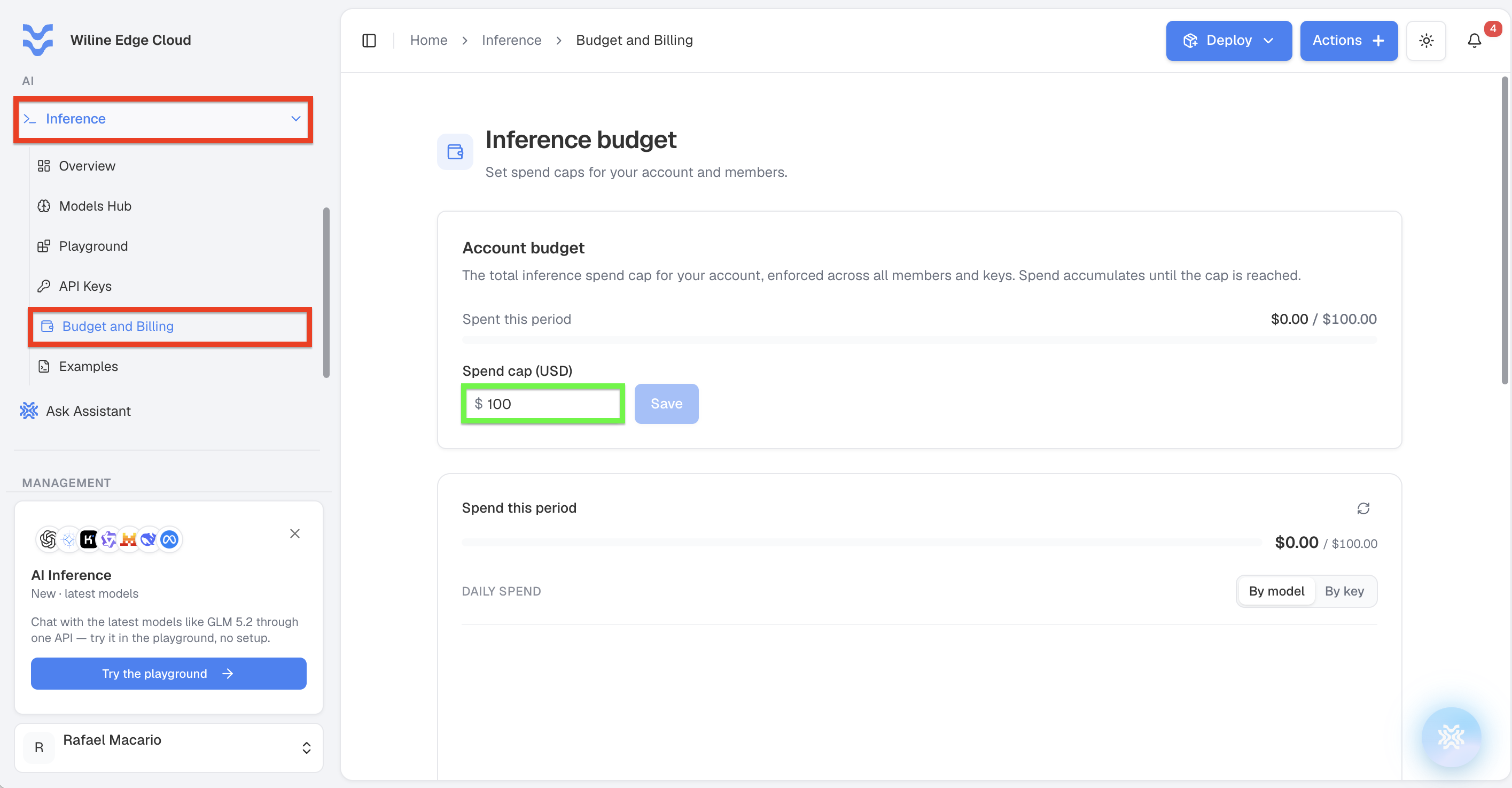
Figure 1: Budget and Billing — the account cap and its Spend cap field, with Spend this period beneath.
Viewing requires account ownership, billing view access, or user management permission. Editing is split: spend caps need ownership or billing manage, while a member's inference access level needs ownership or user manage. If you have neither, the page tells you so and links back to the Overview.
Account budget
The Account budget card is the total inference spend cap for the account. It applies across every member and every key — one ceiling for everything.
The card shows two things:
- Spent this period — spend so far against the cap, as
$spent / $cap, with a bar showing how far through you are. - Spend cap (USD) — the editable figure, with a Save button beside it.
To change it, type the new figure — or use the stepper arrows in the field to nudge it up and down — then click Save. The account cap is required and must be greater than zero; you cannot clear it to mean "unlimited".
A cap is most useful when it reflects what you actually expect to spend, because it doubles as an alert: the bar filling up is the signal to look at usage. A cap set far above real spend never tells you anything.
Spend this period
The second card reports what the account has actually consumed, and repeats the
headline figure as $spent / $cap. A refresh control at the top right re-reads it.
The chart below is daily spend — one bar per day across the period. Two buttons on the right, By model and By key, break that daily spend down: by which models the money went to, or by which key spent it, so you can trace spend back to an application.
Underneath, three totals for the period: Input tokens, Output tokens, and Requests. Input and output are counted separately because they are priced separately — see the Models Hub for each model's rates.
The card header names the window it covers, for example Usage this period · Aug 1 – Aug 24.
Usage is also visible per key on the API Keys page, and per key over a chosen month on each key's detail page.
Members
The Members card is where you manage who on your team can use inference at all, and how much each of them may spend. It does two jobs: it sets a member's inference access, and it sets their optional spend cap within the account budget.
The table has one row per member:
| Column | What it shows |
|---|---|
| Member | Their name and the email they sign in with. |
| Role | Their account role — for example Admin, Manager, Viewer, or Team member. |
| Inference | Their inference access level: No access, View, or Manage. |
| Tokens | Tokens they have consumed this period. |
| Spend | Their spend this period. |
| Spend cap | Their optional cap. Reads No cap until you set one. |
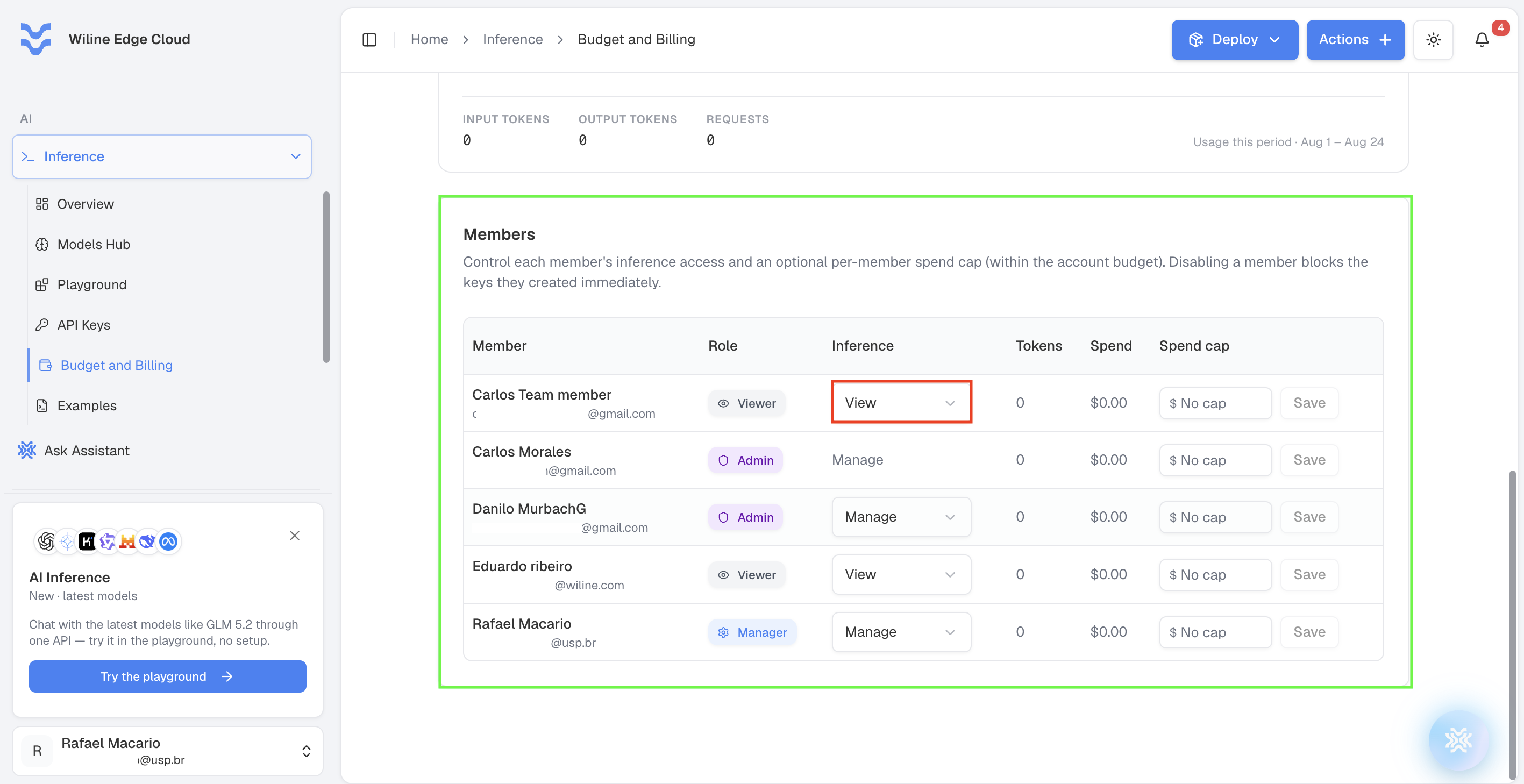
Figure 2: The Members card — each member's inference level and an optional spend cap, saved per row.
To change a member's access, set their Inference level. There are three: No access shuts inference off for them, View lets them look, and Manage lets them work. This is separate from whatever role they hold on the account.
To set a member's cap, use their Spend cap field — type a figure, or use the stepper arrows in the field to nudge it up and down — then click the Save on that row. Each row saves independently. Clearing the field returns them to No cap.
A per-member cap sits inside the account budget: it limits that one member without raising the account ceiling. No cap means the member is bounded only by the account cap, not that they are unlimited.
Note that the account Role and the Inference level are separate. A member can hold an administrative role on the account and still have only View on inference — the two columns are set independently, and the Inference column is the one that governs whether they can call models.
Setting a member's Inference level to No access blocks the keys they created right away. Any application still using one of those keys starts failing authentication. Check which keys a member owns on the API Keys page — the Owner column — before you disable them.
Next steps
- API Keys — create keys, scope them to models, and read per-key usage.
- Models Hub — per-model input and output token pricing, so you can estimate what a cap buys.
- Cost Explorer — inference spend alongside the rest of your cloud costs.